
1
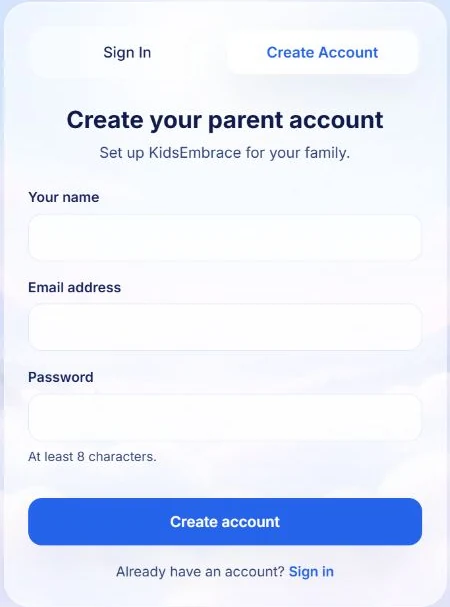
Create your account
Start with a parent account
An adult signs in and creates or joins a family. The parent app is the place to manage the experience.
How it works
Get started in a few parent-led steps, then bring a voice-first moment to your next family ride.
Your journey
Real screens from the parent app. Names and session dates are hidden.
Create your account
An adult signs in and creates or joins a family. The parent app is the place to manage the experience.
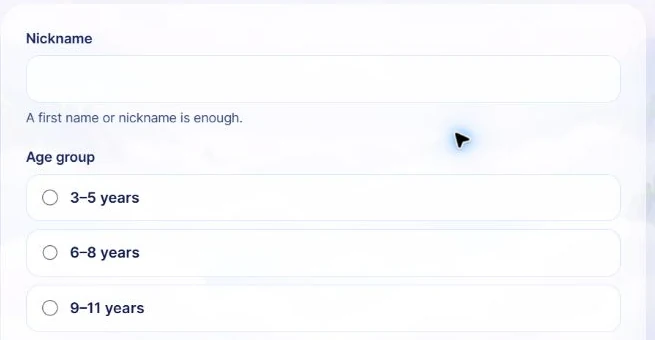
Add your child
Add a nickname or display name, age band and interests. The profile belongs to your family; a child does not need an account.
Choose a companion
Browse the characters the platform currently makes available and choose one for your child.

Check your audio
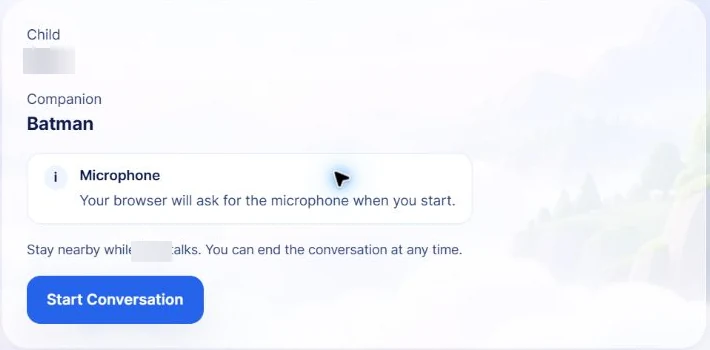
The browser asks for microphone access when you start. Sound plays through the phone or computer’s available audio output.

Start the conversation
The parent starts the session so the child can speak with the selected companion. The parent stays nearby and can end it at any time.
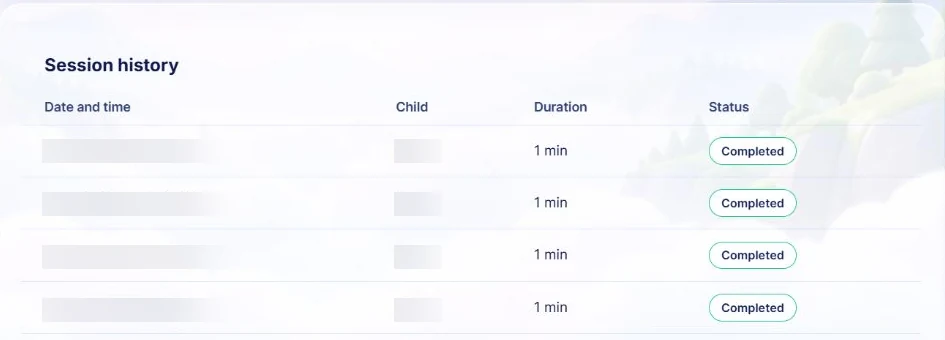
Stay in control
The parent can end the session and later see basic family session history, such as time and outcome.

A little magic for the miles ahead
Open the parent app, set up your family and explore the experience at your pace.
Get Started